

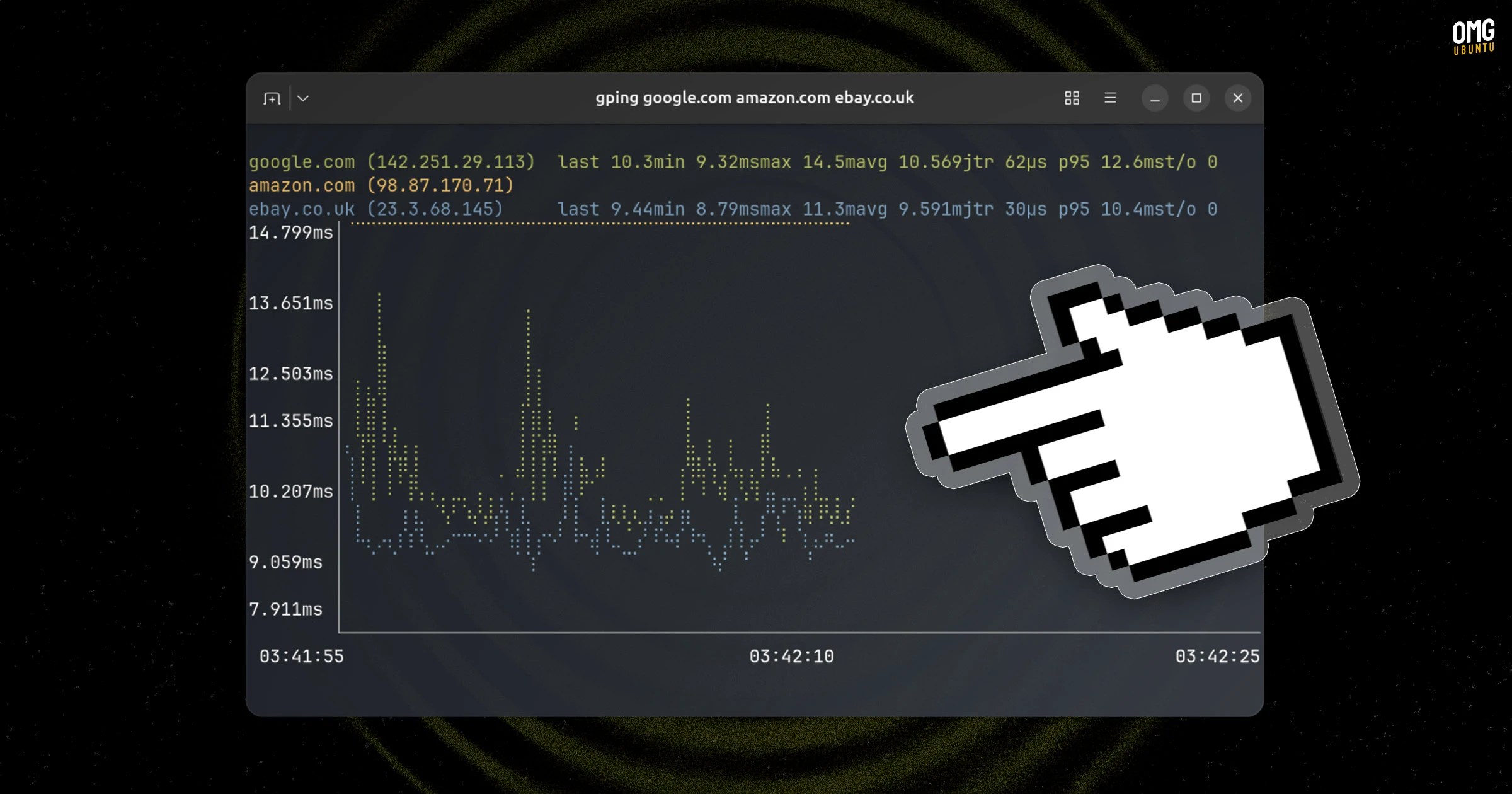
The ping command is a useful way to troubleshooting network issues, but the output looks drab by default.
Not so with gping, a cross-platform ping tool that prints a pretty graph inside your terminal. Ping points are visually plotted in real time on a chart to make it easier to see changes in response times when the command in running.
What does ping actually do?
Ping is a small tool preinstalled on all major OSes, Ubuntu included. It’s often used for network connectivity checking, e.g., that the computer you’re using is able to communicate with the internet or a networked device, or that the pinged server is online and working.
The command sends a small packet of data to a specified IP/URL and, if it receives a data packet back, you know you’re connected. If it doesn’t, either you’re offline or the site you’re trying to ping is.
Ping data allows you to test the speed of a connection to a given server, telling you how long each packet takes to send and return. The longer the ping, the slower the connection.
However, the way the standard ping command presents its data is a little… Well, like this:

Bit drab, isn’t it?
It’s why gping is a neat tool to keep stashed in your network monitoring kit.
Rather than rows of text stacking up in real time squint it renders a real-time graph, with peaks and dips in response time clearly visible at-a-glance.
Why a graph? Its developer explains: “I thought a graph would be a great way to visualize the data. I still wanted to just use the command line though, so I decided to try to write a cross-platform one that I could use. And here we are”.
By default, the tool pings google.com, but can ping any web address(es) you specify. It lists statistics (last, min, max, average, jitter, p95, and timeout count) at the top. The axis plot system time along the bottom and response time on the side.

Flags let you customise the graph itself by setting vertical and horizontal margins and specifying the colour(s) to graph entries. A simple-graphics mode is also available (-s) which uses dots instead of braille, should you rather.
Other features include flags to ping IPv4 (-4) or IPv6 (-6) addresses specifically, the interface to use when pinging (-i) and a --cmd option to “graph the execution time for a list of commands rather than pinging hosts”, which is neat.
Ping is useful when you’re trying to establish whether a network issue you’re experiencing, such as slow internet speed, is to do with your router or the website you’re trying to reach.
I work out of a coffee shop regularly, where the Wi-Fi can slow down or appear to disconnect even if I’m still “connected”. The humble ping commands often lets me find out if my connection is actually down, so this tool is going to come in handy.
Install Gping on Ubuntu
You can use gping on Windows, macOS as well as Linux, so it really is a versatile tool to have stashed in the diagnostic toolbox.
On newer versions of Ubuntu, you can install gping straight from the repos using apt:
Open your terminal (the thing you have to use to use gping anyway) and run this command:
sudo apt install gping
When done, run this command to, well, run the tool
gping
To ping a specific address,
gping yourdomain.com
To ping multiple servers:
gping thisdomain.com thatdomain.com anydomain.com
To give them custom colours, add -c to the end of your command with a list of comma-separated colours (blue, yellow, red, etc) and it’ll be applied to each in turn.
Give it a go and – incoming pun alert – don’t forget to ping me with your thoughts by leaving a comment!