
This guide gives you an overview of how articles should be styled on OMG! Ubuntu! (and OMG! Chrome!).
Bold Openings
Open your post with one sentence in bold, and remind yourself that it is here where a hook to inspire the readers to continue reading should be.
The opening line is the one part of your post that will almost certainly be read.
Following on from a punchy opening line should be a sentence of two that offers a brief background to anyone who might not know what you’re actually talking about. And it pays to always assume that people don’t!
If people do not read past the opening few paragraphs they should still have the basics of the story or the gist of what the tutorial, review, aims to achieve.
In-post headings H3
For main in-post headings use the ‘H3’ heading style. Depending on your browser/OS you can hit Ctrl+3 to toggle this type on and off.
Subheadings, used to add more detail
H4 headings are used as sub-headings that appear under a main heading, usually to clarify a specific point or break down content into easily scannable sections.
The shortcut for these headings is Super/Ctrl+4
Bullet Lists
To info dump it makes sense to use a bullet-point list. These are faster to read and look ‘nicer’ on the page than dense paragraphs.
Examples where you might use a bullet-point list:
- System specifications
- Application features
- A “point-by-point” recap of an on-going story
Numbered Lists
For brief instructions you can use numbered lists.
- But Only
- Use These
- For Short
- Instructions
For long, more detailed step-by-step instructions use H4 headings with a numeral stepper, e.g.:
1. Like This
Paragraph.
2. Etc
Paragraph.
Quotes
For long, verbatim quotes that add background or info-dump, place them “in-text” this so:
“This,” Joey-Elijah Sneddon says, “is to help the brain understand them in context”. Context also matters.
If a quote is the point of your story (e.g., ‘Mark Zunderberg calls Apple’s Bannanas’) you should highlight it with the main quotation option. Attribution for the quote should be made clear in the preceding sentence. E.g.,
Mark Zunderberg, CTO of Trolley Tech McNoidea, said:
“Apple’s are bananas. It’s indisputable fact.”
Pull Quotes
Sometimes you may wish to highlight quotes or snippets of content using ‘pull quotes to attract reader’s attention.
These can be placed left or right, but shouldn’t be overly wordy. Press the OMG! icon in the editor toolbar and select the quote alignment you want, placing your text between the two brackets.
Examples:
“A pull quote to the left of content.”
Lorem ipsum dolor sit amet, consectetur adipiscing elit. Praesent ac placerat massa. Maecenas aliquet dolor vel lacus viverra quis ornare enim vestibulum. Mauris pellentesque tortor eget sapien aliquet cursus. Pellentesque et pulvinar risus. Pellentesque auctor nulla quis est commodo at dignissim massa tempus. Cras ac suscipit risus. Quisque hendrerit lorem et lacus sollicitudin tristique. Suspendisse id neque felis. Integer nec ante non urna facilisis luctus id sit amet mauris. Vestibulum porttitor imperdiet rutrum.
“Aliquam aliquet congue arcu a ultrices.”
Nunc in cursus augue. Aliquam aliquet congue arcu a ultrices. Mauris volutpat adipiscing odio et blandit. Mauris auctor imperdiet tempor. Praesent posuere nisl in nunc porttitor euismod. Pellentesque faucibus, sapien ac sollicitudin vehicula, nulla massa vestibulum turpis, non vulputate elit tortor id dui. Suspendisse eget scelerisque nunc. Fusce hendrerit enim egestas sapien ornare ut blandit turpis congue.
Images
Article Images
Images should be less than 100kb (where possible), and uploaded in the .jpeg format.
Although the website automatically displays images at a relative width to the browser size it’s helpful if you embed larger images at 750px. This ensures that they appear as clearly as possibly in the post body.
To make images appear in the ‘lightbox’ when clicked make sure that the ‘link url’ links to the image and not the media attachment page.
Captions
Feel free to enter a caption where relevant as they look pretty. Do not use a caption if you are opening a post with a middle-aligned graphic.

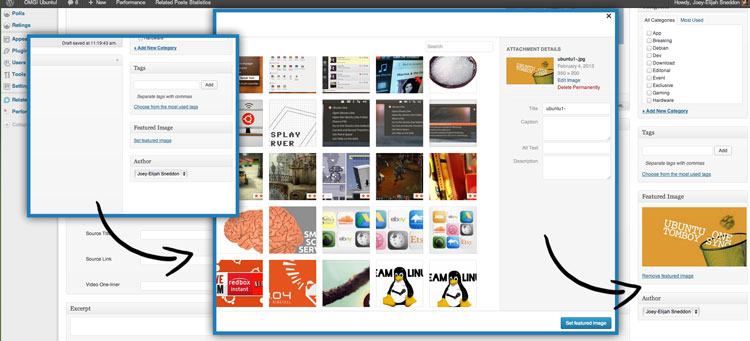
Featured Images
When you visit the main page of OMG! Ubuntu! you’ll see that all posts show a rectangular ’tile’.
This ‘featured tile’ is important for a number of reasons:
- The main page gives prominence to them
- They are the default ‘thumbnail’ shown when people share an article on Facebook and Google+
Hit the ‘Featured Image’ link in the right-hand sidebar to choose an image. You can make your own custom thumbnails (size 700px by 400px works best).
Galleries
You can make use of galleries as you wish.
Excerpts
The very first post on the main page will display a short post description.
ou can write a custom paragraph or, to save time, copy and paste the first sentences from your article into the ‘Excerpts’ box before publishing.
Don’t see an Excerpts box? Hit the ‘Screen Options’ button at the top of the page to enable it.
One-Line
Posts can contain a ‘one line summary’ entered into the corresponding box on the OMG metadata box. This is a concise expansion on what the article is about.
So, for a post titled “10 Things To Do After Installing Ubuntu 13.04″ your one-line might read as one of the following:
- ‘Tips on getting the most out of your new desktop’
- ‘Raring to go: Our Post-Upgrade Checklist”
Notice how they all avoid repeating words already in the headline.

Categories and Tags
Don’t go mad selecting categories. Don’t call something an ‘Editorial’ unless it is; don’t call an app update a ‘Review’ unless you’re using the review box, etc.
By default all posts will be marked as News unless you select something else. The main page displays one tag (the earliest alphabetically) on the Featured Tile image.
For tags, try to use pre-existing ones where possible (as you type a tag existing suggestions will appear). Try to avoid tagging a post with 15 variations of the same word (markshuttleworth, mark shuttleworth, mark, shuttleworth, etc) and resist the urge to use generalised terms like ‘linux’ or ‘ubuntu’. It’s an Ubuntu site, so these are mostly a given.
Code Snippets
For code snippets (e.g., full commands) use <pre> </pre> for this (or select Formats > Blocks > Preformatted)
sudo git commit --example
Reviews
For reviews make sure you use the Review Box. This is located underneath the post body.
Review Checklist:
- Check ‘Enable Review’ box
- Add Criteria Headers & Scores
- Do not select ‘Percentages’ as rating type
- Add Header
- Add One/two word summary
- Add Short conclusion
- Choose whether the box appears at the bottom of the post or in the upper right

Buttons
We have a lot of different buttons, each has a specific use.
To insert a button click the omg icon and fill in the boxes. You will ne manually center align your button code before publishing.
Videos
To embed a video from YouTube or Vimeo simply paste the URL link into your post with no formatting. WordPress should do the rest.
Formatting
PPA instructions formatting
PPA instructions should be written on two lines, with the PPA address bolded.
The second line should be a dual command for updating and installing.
Finally, PPA’s, as with all commands, should be styled with the ‘Preformatted‘ option.
Source Attribution Formatting
Use the ‘Source’ box:
Citations
1/2 Columns
Links
Writing
Abbreviations
Names
Italicise the names of people where possible.